Getting started
Setting up takes about five minutes and you only do it once.
What you need
- Your A:DHAN clock and its USB-C cable
- A USB wall charger (a modern phone charger is fine)
- A phone, tablet or laptop with Wi-Fi
- Your home Wi-Fi name and password
Step 1: Plug it in
- Plug the cable into the back of your clock and into a wall charger.
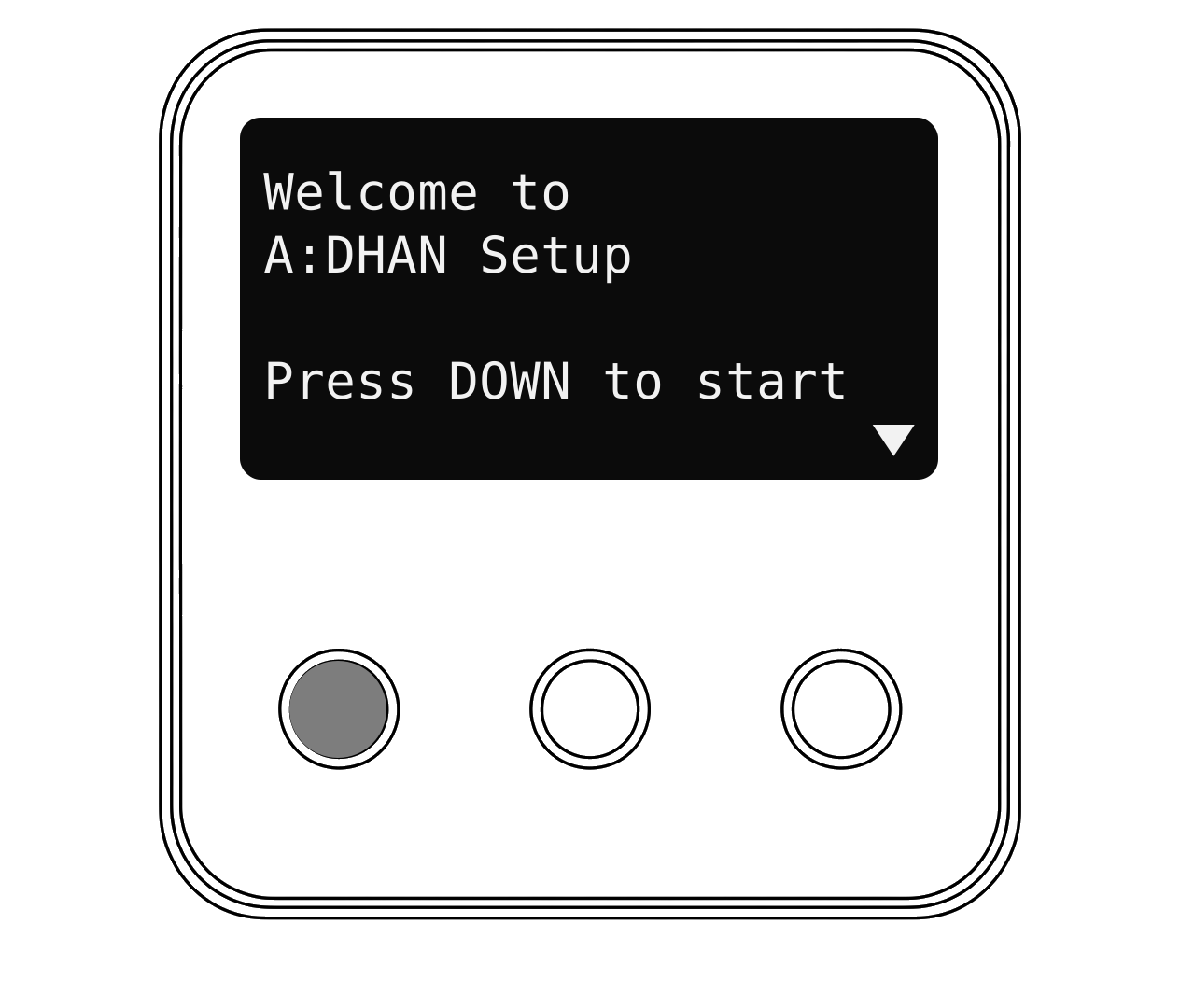
- The first time, the screen shows Welcome to A:DHAN Setup.
- Press Down to read the setup steps on the screen. Press Up to go back.
Step 2: Connect your phone to the clock
- On your phone, open Settings then Wi-Fi.
- Choose the network called Adhan-AI.
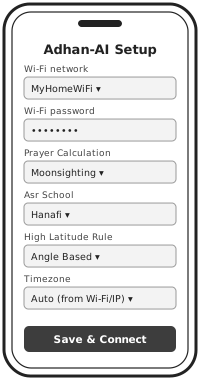
- A setup page opens by itself. If it doesn't, open your web browser and go to 192.168.4.1.
- Pick your home Wi-Fi from the list and type its password. Capital letters matter.
- Leave the prayer settings as they are unless you know you need something different (see Prayer settings).
- Tap Save & Connect.
Step 3: Wait for your clock to get ready
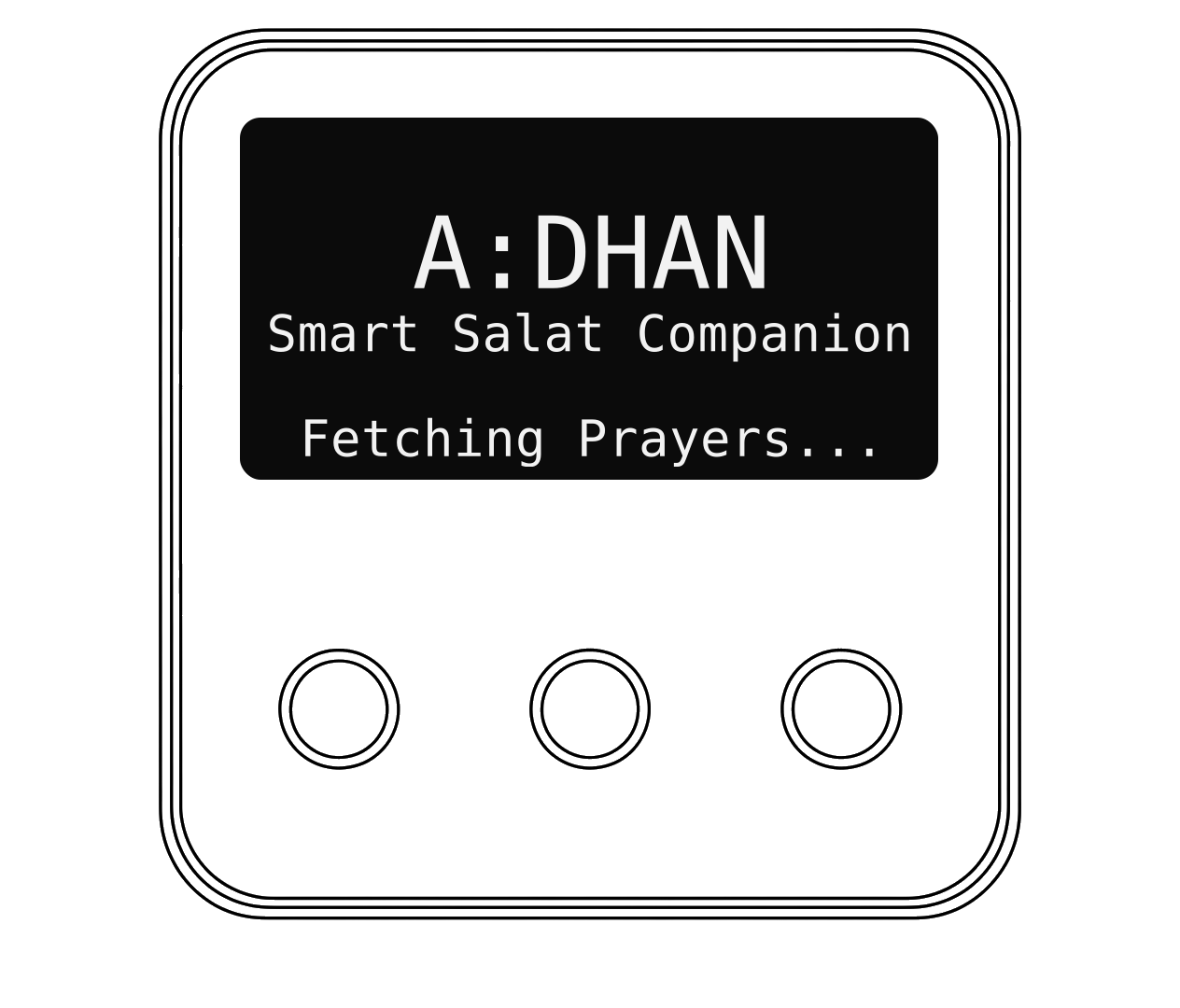
Leave your clock for a minute or so. It restarts and shows what it is doing at the bottom of the screen:
WiFi Try 1/3 WiFi Connected Fetching Location... Syncing time... Fetching Prayers... Prayers: Ready
Then the home screen appears and you're done. Your phone goes back to your normal Wi-Fi by itself. If it doesn't, reconnect it.
Hot tip
Keep your clock plugged in and within reach of your Wi-Fi, so it can refresh its prayer times every night and stay on time.