Troubleshooting
| Problem | What to do |
|---|---|
| The screen says WiFi Failed! and goes back to setup | The password was probably wrong, or the Wi-Fi is too far away. The clock tries 3 times, then forgets the password. Repeat Step 2. |
| The home screen shows NO WIFI CONNECTION | Your clock has lost your Wi-Fi. Check that your router is switched on. The clock keeps the times it already has. |
| No Adhan sound, or the clock restarts when the Adhan starts | Use a stronger wall charger, not a computer or TV USB port. Check the volume isn't on Mute. |
| Prayer times look wrong | First try restarting your clock: unplug it, wait a few seconds and plug it back in. If the times are still wrong, check Method and School in Prayer settings and any Adjustment. If you have moved, see Travelling. |
| Hotel, office or public Wi-Fi | Wi-Fi that needs a sign-in web page or a work username may not connect. A phone hotspot is a good alternative. |
Travelling or changing your Wi-Fi
- Open the menu, choose Network, then Reset Device.
- Choose Proceed. Your clock forgets the old Wi-Fi and shows the setup steps.
- Set it up again as in Step 2. Your new location and prayer times are found automatically.
Factory reset (start again from scratch)
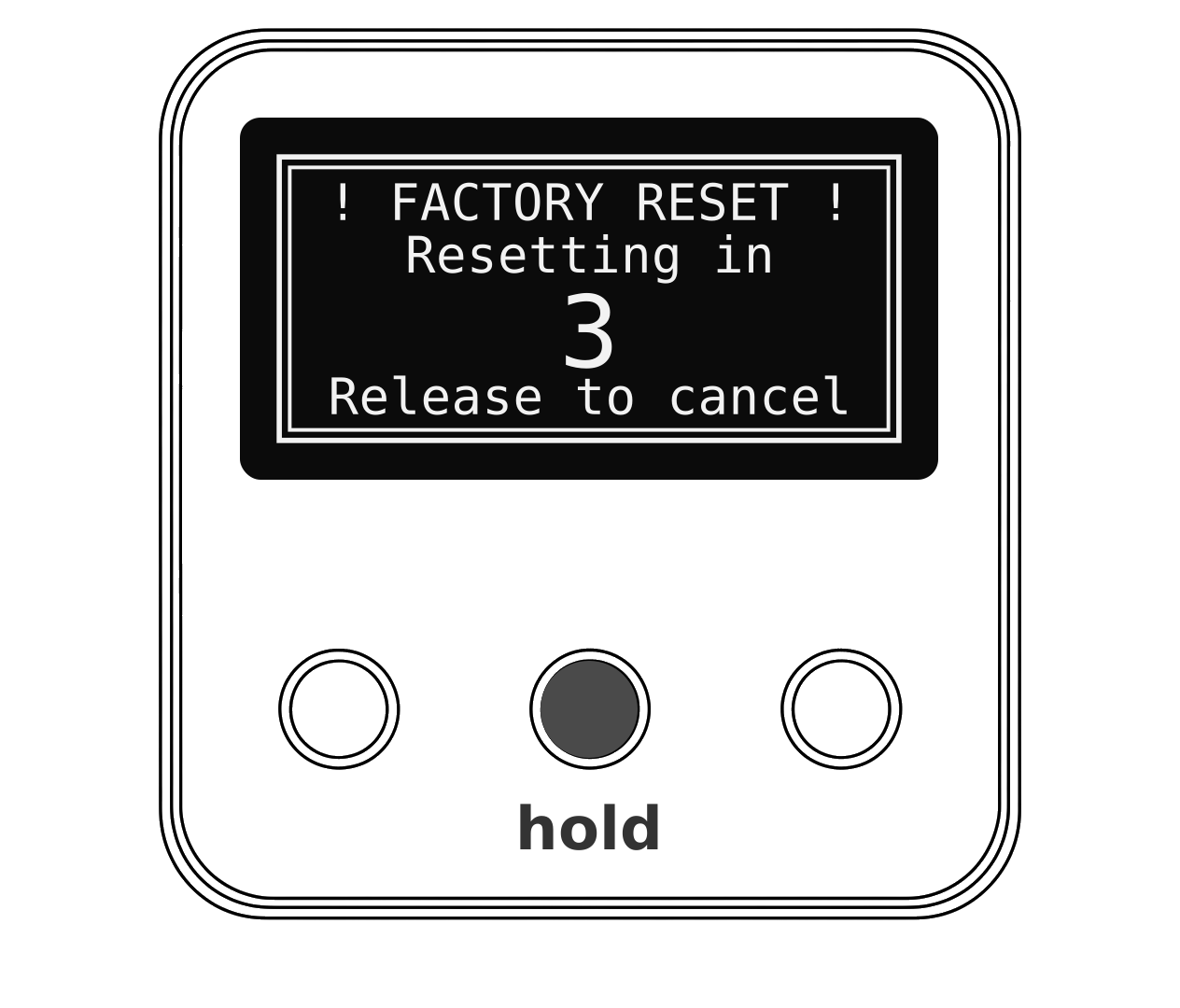
- Press and hold OK for 10 seconds until ! FACTORY RESET ! appears.
- Keep holding through the 5 second countdown. Let go early to cancel.
- Your clock erases all its settings and restarts.
Can we help?
If your clock still isn't working as described, contact the seller you bought it from.